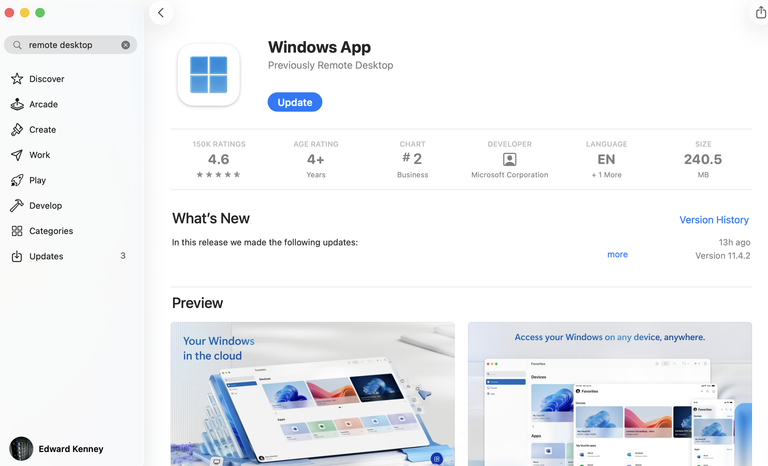
Method 1. Open the Remote Desktop Connection Tool Using the Start Menu
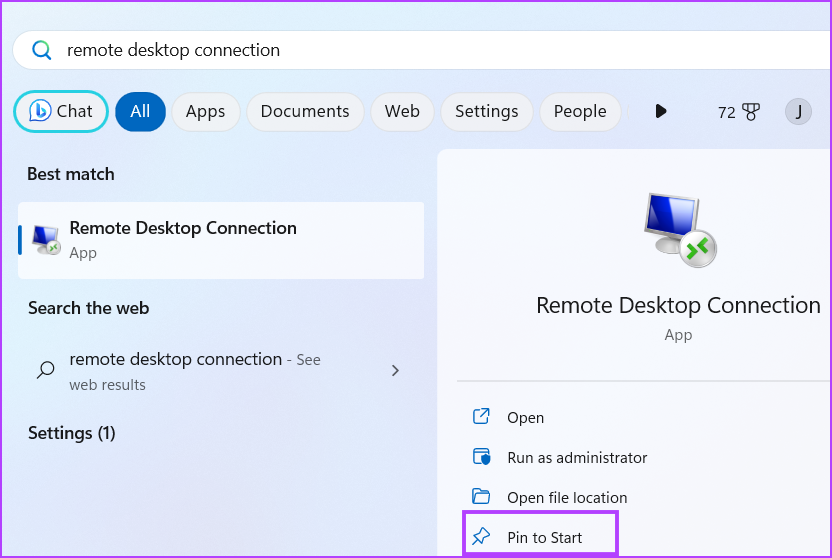
Step 1: Press the Windows key to launch the Start menu.
Step 2: Type remote desktop connection in the search bar. Click on the Open option from the search results to launch the tool.

Method 2. Open Remote Desktop Connection Tool Using Run Dialog Box
The Run dialog box can run shortcodes and open folder locations. So, all the programs located in the Windows folder can be called directly from the Run dialog box. Here’s how:
Step 1: Press the Windows + R keyboard shortcut to launch the Run dialog box.
Step 2: Type mstsc in the text input box and press Enter to launch the Remote Desktop Connection tool.

Method 3. Open Remote Desktop Connection Tool Using Pinned Shortcut
Repeatedly searching for a frequently required tool can be cumbersome. So, you can pin the Remote Desktop Connection tool’s shortcut to the Start menu and the Taskbar for easier access. Here’s how to do it:
Step 1: Press the Windows key to open the Start menu. Type remote desktop connection in the search box.
Step 2: Click on the Pin to Start option in the right-hand pane.
About the Author